 iPeriod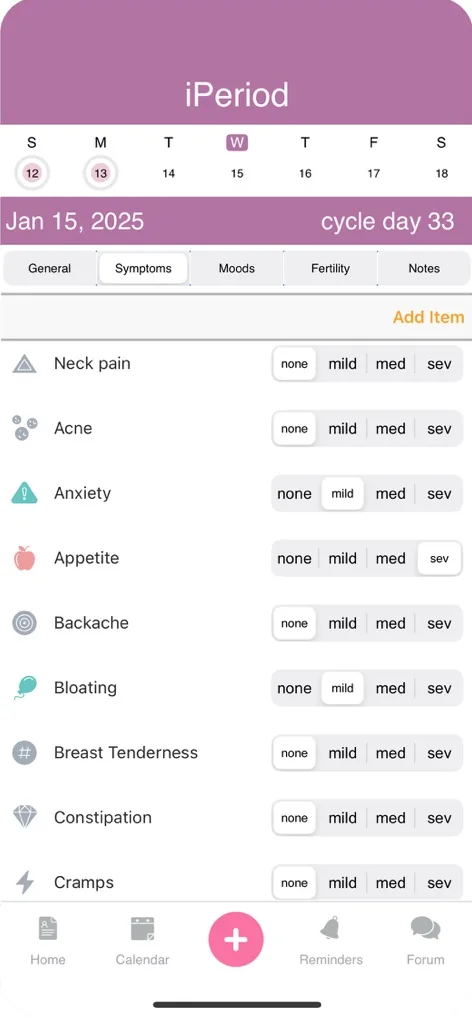
01Getting started
What is iPeriod?
iPeriod was the original period tracking app on iOS, debuting in 2008, made for women and created by a woman. iPeriod has continually evolved ever since, making it what it is today. We hope you enjoy it!
iPeriod’s health algorithm learns more with each entry you make, and you will find that predictions become more accurate over time.
What’s the difference between iPeriod, iPeriod Lite and Premium?
Understand the different options available with iPeriod:
| Feature | iPeriod Lite | iPeriod | Premium |
|---|---|---|---|
| Period tracking | ✓ | ✓ | ✓ |
| Calendar | ✓ | ✓ | ✓ |
| Symptom tracking | ✓ | ✓ | ✓ |
| Mood tracking | ✓ | ✓ | ✓ |
| Activity tracking (Apple Health) | ✓ | ✓ | ✓ |
| Weight tracking | ✓ | ✓ | ✓ |
| Fertility tracking | ✓ | ✓ | ✓ |
| Next 12 predictions | ✓ | ✓ | ✓ |
| Community forum | ✓ | ✓ | ✓ |
| Custom reminders | ✓ | ✓ | ✓ |
| 4 user-defined symptom icons | ✓ | ✓ | ✓ |
| No ads | – | ✓ | ✓ |
| Unlimited customizable symptoms | – | – | ✓ |
| BBT fertility graphing | – | – | ✓ |
| Unlimited PDF data exports | – | – | ✓ |
| Custom graphs | – | – | ✓ |
Getting started with Apple Health
Import data from Apple Health, including periods, weight, BBT and activity. Make sure you give permission in the iOS Settings app: go to Health → Data Access & Devices → iPeriod and choose what to share. Now you can see related stats on your iPeriod home screen!
How do I export my data?
As an iPeriod Premium subscriber, you can export reports as often as you like. Tap Settings from the Home screen and choose Share, then select the time frame you wish to see. We love this feature for preparing for doctors’ appointments!
02Periods, notes & graphs
How do I add a period?
Option 1: Touch the plus sign (pink button) on the bottom tab bar to enter notes and periods for today. On the Notes screen, select “first day of period”. Choose to use your average duration or mark your period day by day. When marking day by day, select “extend period” from the Notes screen to record another period day. Trim a period by double-tapping an existing period day and selecting “last day of period”.
Option 2: Touch the “Cycle Average” box on the Home screen, then touch the plus sign in the upper right corner. Enter the first day of your period and the duration (number of days bleeding) or the last day. Save and repeat to enter additional periods.
Option 3: On the Calendar screen, double-tap any day to enter periods and notes for that day.
How do I enter flow?
A period must first be added to indicate flow. Then select “Light”, “Medium” or “Heavy” on the Notes screen.
How do I edit or delete a period?
To edit: From the Home screen, tap your “Cycle Average” box, then tap any period under Cycle History to edit its dates.
To delete, option 1: From the Calendar, touch the first day of the period you’d like to delete. Once inside Notes, deselect “first day of period”.
To delete, option 2: From the Home screen, tap your “Cycle Average” box and swipe across any entry under Cycle History. A red delete button will appear.
Recording notes and customizing symptoms
Double-tap any calendar day or touch the plus sign (pink button) on the bottom tab bar. Notice the five tabs at the top of the screen: general, symptoms, moods, fertility and freeform notes.
Managing symptoms is simple! Remove unneeded symptoms by swiping across them, and add symptoms by tapping “Add item” under the symptoms tab.
How do I control which icons appear on the calendar?
Tap any symptom to customize its placement on the calendar. When you return to the calendar you will see icons representing your notes, giving you a visual snapshot of your cycles.
I’d like to see more graphs
Graphs are accessed from the Home screen. Want to see a graph of your cycle averages? Simply tap “Cycle Average” from Home! Want to view graphs of headaches or any other symptom? Select “Add Chart” (a Premium feature) to add the graphs that matter to you.
03Your account & data
Why create an iPeriod account?
An iPeriod account gives you automatic, encrypted data backup and lets you post in the community forum. We know how important your iPeriod data is, and an account lets you retrieve it if your phone is lost or broken, the app is accidentally deleted, or you get a new phone.
Transferring my data from another device
Sign in to your iPeriod account on both devices and your data will sync automatically. If you are not seeing this happen, make sure you are signed in by going to Settings → Accounts.
I can’t remember my password
No problem. Go to Settings → Accounts and tap “Forgot Password”.
Restoring data from a previous version of iPeriod
First, make sure you are signed in. Then go to Settings → Data. The first option restores from the auto-backup made by the previous version of iPeriod; the second restores from a manual backup you may have made in a previous version.
How do I delete my data?
Use the feedback link in the App under Settings, or email privacy@winkpass.com from the address associated with your account. See our Privacy Policy for details.
04Reminders
Personal reminders
Add reminders that are relevant to you: drink water, exercise, take medication and more. Tap the plus sign in the upper right corner of the Reminders screen to get started.
iPeriod notifications & email alerts
Notifications are displayed even when the app is closed. You may receive notifications for expected periods, late periods, fertility and breast exam reminders, and you can customize the sounds, text and frequency, or turn them off.
Email alerts are sent to the email address(es) of your choice. After turning on alerts, choose the frequency and type of alert you’d like (expected period, late period).
05Settings
Passcode, Face ID & Touch ID
Startup password: Keep your private data safe with password protection. Turn this setting on and fill in the required fields.
Face ID / Touch ID: Turn it on for quick, secure unlocking.
Cycle settings
Control how iPeriod computes your statistics. iPeriod calculates averages using all periods by default; you can tell it to use only a specific number of previous cycles, which may help if your cycles have recently changed. You can also ignore cycles longer than a given length. For example, if an unusually long 50-day cycle is skewing your statistics.
Ovulation & luteal phase
Choose whether iPeriod predicts ovulation and fertility. You can also adjust the luteal phase: iPeriod assumes a luteal phase of fourteen days, the average for most women. It begins when ovulation occurs and continues until day 1 of your next period.
Pregnancy mode
If you are pregnant, let iPeriod know here. Pregnancy mode disables alerts and projections, calculates your due date and adjusts statistics accordingly. When your period returns, turn this setting off or simply add a new period.
Subscriptions, units & more
Share: Export your data for your personal use (Premium).
Subscriptions: Manage iPeriod Premium, including restoring purchases.
Units: Choose between imperial and metric.
Privacy Policy: We value your privacy. Read our policy.
06Support
We are continually striving to make iPeriod even better and value your feedback. Please send suggestions and issues using the feedback link under Settings in the App. Thank you!